
targus
Hyper
iStore
For business
Alienware

Hurry! Cyber Week is almost gone


Web/Shogun Style Guide

Last updated: Sep, 2024

Typography


Header Tags (h1,h2,h3,..etc) are all CAPS


Banner/Video Heading Example 
 h1 {
font-family: "proxima-nova", sans-serif;
font-size: 40px;
font-weight: 900;
line-height: 35px;
margin-bottom: 10px;
text-transform: uppercase;
color: #fff !important; }
 h2 {
font-family: "proxima-nova", sans-serif;
font-weight: 500;
font-size: 30px !important;
line-height: 30px;
text-transform: uppercase;
 }
 h3 {
font-family: "proxima-nova", sans-serif;
font-weight: 700;
font-size: 26px;
line-height: 28px;
text-transform: uppercase; ( If a section Title)
 }

Note: Headers (H3, H4, etc.) are currently in all caps if they are section titles. For headers within a section, please use title case (only the first letter capitalized).


Banner/Video Subhead
Example Subhead That Goes to Two Lines And Has a Max Width of 460px.
p {
font-family: "proxima-nova", sans-serif;
font-size: 20px;
font-weight: 300;
line-height: 25px;
margin-top: 32px;
color: #fff !important
}
Default Font Style
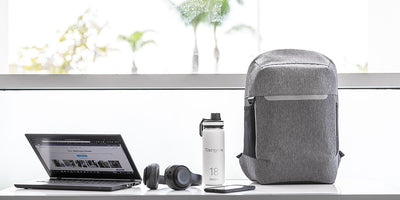
Ultra-slim and lightweight with understated style to spare, the Targus 12" - 15.6" CityLite Pro Compact Convertible Backpack protects your laptop and provides adaptable carrying - for whatever your day has in store. Easily convert from backpack and briefcase carrying to suit your style or task at hand. Just detach and stow shoulders traps neatly away for sleek briefcase carrying with the low-profile side handle. Take it for a ride atop your luggage for travelling ease with the integrated luggage trolley strap.
{
color: #3a3a3a;
font-family: "proxima-nova", sans-serif;
font-size: 16px;
font-weight: 300;
line-height: 26px;
}

Colors

Primary Colors

$targus-purple
#4e008e;

$targus-blue
#00b5e2;

$targus-green
#84bd00;

$targus-red
#ba0c2f;

$targus-orange
#ee7623;

$targus-yellow
#ffcd00;
Grays

$dark-gray
#3a3a3a;

$gray
#cccccc;

$light-gray
#f1f1f1;

Buttons

Any CTA Button/Add to Cart
Shop Now
.btn-primary {
width: 100%;
height: 40px;
line-height: 40px;
background: #00b5e2;
font-family: "proxima-nova", sans-serif;
font-size: 14px;
color: #fff;
display: inline-block;
font-weight: 600;
text-align: center;
margin: 0 auto 0 auto;
padding: 0 30px;
}
Product page (Add to cart Button) 
Add to Cart
{
width: 100%;
height: 44px;
min-height: 44px;
background: #84bd00;
font-family: "proxima-nova", sans-serif;
font-size: 16px;
color: #fff;
display: block;
font-weight: 400;
text-align: center;
padding: 10px 18px;;
padding-left: 5px;
padding-right: 5px;
text-transform: uppercase;
letter-spacing: .08em;;
white-space: normal;
line-height: 1.4;
margin-top: 0;
border-radius: 2px;
text-decoration: none;
vertical-align: middle;
cursor: pointer;
border: 1px solid transparent;;
}
Any Information button
Learn More
{
line-height: 40px;
font-size: 14px;
background: #4e008e;;
color: #fff;
display: inline-block;
font-weight: 600;
text-align: center;
margin: 0 auto;
padding: 0 30px;
border: none;
}
Out of Stock Button
Sold Out
{
width: 100%;
height: 44px;
line-height: 44px;
background: #ccc;
font-family: "proxima-nova", sans-serif;
font-size: 14px;
color: #fff;
display: inline-block;
font-weight: 600;
text-align: center;
margin: 0 auto 0 auto;
padding: 0 30px;
text-transform: uppercase;
}

Forms

Default Input Form

Padding

Padding is used to create space around an element's content.

Large Screen:

  • Set the value of Padding top and bottom for every section to  64px or 4rem
  • Set the value of Padding left and right for every section on the page to 16px or1rem
Small Screen:
  • Set the value of Padding top and bottom for every section to  32px or 2rem
  • Set the value of Padding left and right for every section on the page to 8px or 0.5rem
  • For Stylesheet use "REM" Value instead of px

Media Queries

Media queries or breakpoints are useful when you want to modify your site or app depending on a device's general type (such as print vs. screen) or specific characteristics and parameters (such as screen resolution or browser width).

For medium screen:
  • @media screen and (max-width: 768px)
For small screen
  • @media screen and (max-width: 468px)

Images

Use jpg formats
  • Only use png if a transparent background is needed
  • Only use gif if animation is needed
  • This includes product images on the PDP – use jpg format with a white background moving forward (historically we used png with a transparent background)
Always compress files before uploading
  • For Mac users https://imageoptim.com/mac for reduces image file sizes. and Removes invisible junk
  • Use https://tinypng.com/ for jpg or png file formats
  • Use http://gifgifs.com/optimizer/ For gif file formats
  • Our goal is 100kb or less as long as the visual quality of the image is not noticeably affected
  • The smaller the better if the visual quality of the image is not noticeably affected


Logo

Example Location File Dimensions Display Size File Type
Logo 274x52 137x26 .png


Social Icons


Homepage

Specifications for Targus homepage banner/video header:

Video & Image Slider

Video format 

  • The Video URL should be in mp4 or ogg or webm format
  • Poster Image 1920*800 size for video (Image will display until video loads)
  • Mobile Image 500*500 wider instead of the video for the small screen 

Slideshow

  • Homepage banners 1920 x 800 px (.JPG). Hero product needs to be shown in the central 320 px of the image (for mobile optimization) 
  • For mobile the banners 500*500 wider
  • Sufficient contrast between product and background color (cannot show black on black, white on white, etc. for accessibility compliance and user experience
  • Color selection should take colorblindness into account (accessibility compliance)
  • Use the "Sim Daltonism" app to show you colors from the perspective of a color-blind person, some colors are impossible to distinguish
  • Images should be created using RGB not CMYK
  • Images should be sent to us at 72dpi for desktop, and retina-ready (200/300dpi) for iOS
  • Add an extra plain space at the end of the photo to give more space for content on the small screen for the 2 column images section on the homepage. 
          Example Location

          File Dimensions
          Display Size <i class="">
          Facebook 48x48 28X28

          ri-facebook-box-fill ri-lg
          Instagram 48X48 28X28


          ri-instagram-fill ri-lg
          Twitter 48x48 28x28

          ri-twitter-fill ri-lg
          Email 48x48 28x28

          ri-youtube-fill ri-lg
          Linkedin 48*48 28*28

          ri-linkedin-box-fill ri-lg
          Example Location File Dimensions Display Size File Type
          Main Banner (Desktop) 1900x500 100%

          .jpg

          Main Banner (Mobile) 500X500 Wider 100%

          .jpg

          Square Image 1024x1024 639x639 .jpg
          Product Slider 480X480 100% .jpg


          Collection Page

          Example Location File Dimensions Display Size File Type
          Main Banner 2000x500 100% .jpg
          Top Ad 1600x200 100% .jpg
          Sidebar Ad 500x500 232x232 .jpg


          Product Page

          Example Location File Dimensions Display Size File Type
          Main Image 1200x1200 548x548 .jpg
          Premium Content 750x500 548x365 .jpg
          Open Graph 1200x630 527x354 .jpg

          Navigation

          Example Location File Dimensions File Type
          Nav Dropdown 500X500 .png


          Press Room

          Example Location File Dimensions File Type
          Main Image 2000x500 .jpg


          Blog

          Example Location File Dimensions File Type
          Main Image 1200x600 .jpg


          Social

          Example Location File Dimensions Display Size File Type
          Insta Post 1080x1080 100% .jpg
          Insta Story 1080x1920 100% .jpg
          Facebook 940x788 100% .jpg
          Twitter 1024x512 100% .jpg
          LinkedIn 1200x628 100% .jpg
          Pinterest 735x1102 100% .jpg

          Shogun

          To start making use of Targus's new template, simply create a New Page and select a "Targus-Standard-Template” from the list of templates. Your custom templates will be front and center, ready for you to use. You can even choose to make your template a landing page.

          Please don’t update the template itself. The only way to use it is explained below.

          How to use the “a Targus-Standard-Template”?

          • Go to Shogun Dashboard 
          • Go to “+ Add page"
          • Go to the “Your Templates” tab
          • Choose “Targus-Standard-Template”
          • It gives you pop up window for  “page details” to enter the Page Name and URL
          • Choose "Create a standard page"
          • Go to the pages and see the page you created with the Targus standard template. All you need after that update the photos, text, or hide section that you don't need it.

          Targus Snippets

          You will have Targus Standard sections ( Snippets) to choose from it besides the template.
          • On your Shogun new page
          • Go to the "Snippets" tab in the right section
          • You will find a list of Targus-Snippets.
          • Just drag on the page the section you like.

          Shogun Typography

          Targus/Shogun standard font is "proxima-nova"

          Font color:  #3a3a3a;

          Shogun Banner Heading

           Heading H1

          • Use H1 only once on the page within the main Header
          • Use UPPERCASE for the H1 when writing the text
          • Use Font Size: 44 px for Desktop/ Laptop and 36 px for Mobile

          • Use the standard Font: Proxima-nova

          • Text color: FFFFFF

          Banner Subtitle

          • Use Paragraph 
          • Font  Size: 20 px
          • Line height: 24
          • Margin Top: 16 px
          • Margin Bottom 32 px

          Shogun Heading H2

          Any section's title after the main header should be H2

          • Use Font Size: 40px for Desktop/Laptop and 32 px for Small device
          • Use UPPERCASE for the H2 when writing the text
          • Use the standard Font: Proxima-nova

          Shogun Standard Padding

          Use for every section Padding Top and Bottom: 96 px or  Choose from the Snippet tab a "Targus/standard-container". This snippet will create a section with the standard padding and h2 as a title.

          For small screen:  Use for every section Padding Top and Bottom: 32 px. 


          Shogun Standard buttons

          For any call to action button such. Use the Targus Blue Color: 00b5e2 for the Hover/Focus option use the same color as the button.

          • Text color: FFFFFF
          • Background: Solid
          • Color: 00B5E2
          • Border Thickness: 1px
          • Border Radius: 2px
          For any informative button. Use the Targus Purple Color: 4E008E for the Hover/Focus option use the same color as the button.
          • Text color: FFFFFF
          • Background: Solid
          • Color: 4E008E
          • Border Thickness: 1px
          • Border Radius: 2px

          Images size

          • Main header: 2000*800
          • Slideshow images: 800*600
          • Left or right images: 800*600

          Shogun Standard background colors


          4E008E

          F5F5F5

          FFFFFF